Laser engraving photo: turn a picture into clean line art first
Prepare a photo for laser engraving or Cricut: turn it into clean black line art, then save PNG, SVG or DXF as a tracing base. Free, no sign-up.
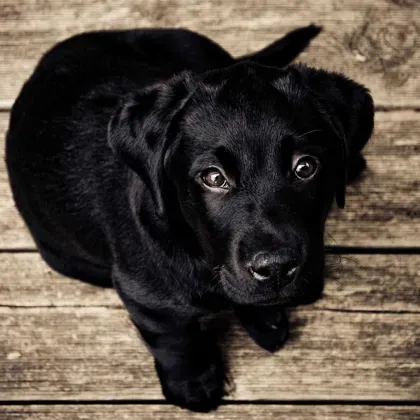
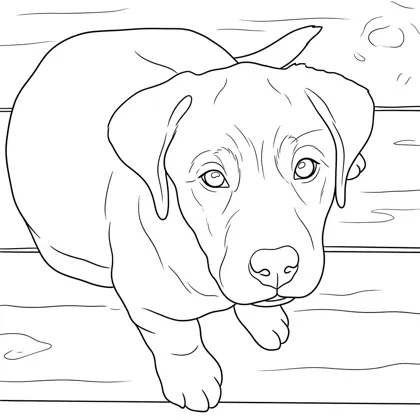 Real result from this tool
Bought a pack on another device? Sign in with your email
- Free drawings
- 3 per day, no sign-up, no watermark
- Formats
- PNG, traced SVG and DXF
- Cutter tested
- No, test on scrap first
From photo to a laser or Cricut file in three steps
Choose a clear photo
A sharp photo with one subject and a plain background engraves best. Pets, portraits, logos and buildings all work; busy scenes give too many small lines.
Pick a bold style
Bold line or Clean outline with Low or Medium detail gives thick, simple lines that survive engraving and cutting. Turn on Remove background so only the subject is drawn.
Download and prepare the file
Save the PNG for raster engraving, or the traced SVG or DXF as a vector base. Open it in your laser or Cricut software, check the paths and test on scrap material.
Why turn a photo into line art for laser engraving
A laser burns darker where the image is darker, so a normal photo gives a muddy result on wood or leather unless you spend time on dithering. Line art is pure black on white, which engraves crisply and also gives you lines to score or cut. Use the photo to line art converter to get that drawing first, then send it to your machine.
Laser engraving photo files: raster, scoring and cutting
For raster engraving, the PNG is usually all you need: it is high-contrast black on white. For scoring or cutting, you need vector paths, so use the traced SVG or DXF. They are traced in your browser from the drawing and have not been tested on a cutter, so inspect them, remove tiny islands and close open paths before cutting. See what the DXF export is good for.
Tips for a cleaner laser engraving photo
Fewer, thicker lines engrave and cut better than many thin ones. Choose Low detail for small pieces like keychains and Medium for larger signs. Fur, hair and leaves turn into many small strokes; if a result is too busy, run it again with less detail. For Cricut vinyl, weed-friendly shapes matter more than detail, so the photo to stencil styles are a good starting point.
Frequently asked questions
How do I prepare a photo for laser engraving?
Turn it into high-contrast line art first: upload the photo, choose Bold line or Clean outline, turn on Remove background and download the PNG. Then set size and power in your laser software and test on scrap.
Can I use the SVG or DXF with a Cricut or laser cutter?
Use them as a tracing base. They are traced in your browser and have not been tested on a cutter, so check the paths in Design Space, LightBurn or your CAD program before cutting.
Is it free?
Yes. You get 3 free drawings a day on each device, without an account, and downloads have no watermark.
What photos work best for laser engraving line art?
Sharp photos with one clear subject and a plain background: a pet, a face, a logo or a building. Group shots and busy backgrounds give too many small lines.
Make your laser engraving line art
Pick a photo and get a bold line drawing in seconds. Three free drawings a day, no sign-up.